
IPTV Device Setup UK helps UK viewers make informed decisions about compatible devices and authorised streaming services. Check compatibility before installing a streaming player on a Fire TV Stick or smart television.
Use the sections below to find detailed instructions and related articles. If you are new to internet television, begin with our IPTV guides UK hub.
Identify the device and its operating system
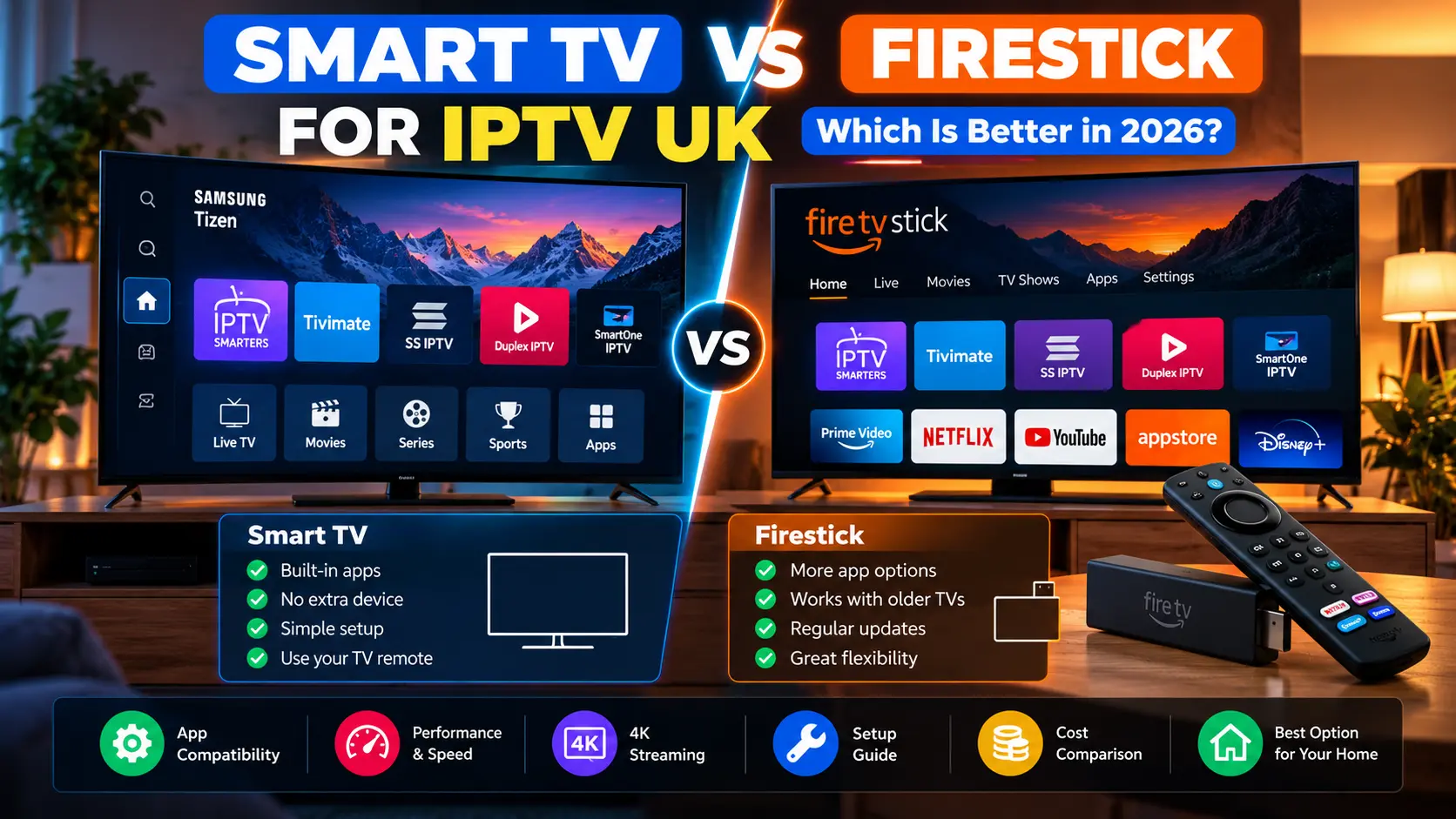
For IPTV device setup, the exact hardware matters. Fire TV devices, Samsung televisions and LG televisions use different software platforms. An app available on one platform may not be offered on another. Record your model number and system version before choosing an app.
Related reading
Install a compatible application safely
Prefer the official store for your device. Check the developer name, recent updates, requested permissions and compatibility with your provider’s authorised login method. Do not assume that installing a player includes access to TV channels.
Related reading
Prepare your network
Connect the device to stable broadband and install system updates. Where practical, use Ethernet or strong 5 GHz Wi-Fi. Test a legitimate stream at the intended resolution; 4K playback needs more reliable throughput than standard definition.
Related reading
Complete setup and protect your account
Use the credentials issued by your provider, keep them private and verify the allowed number of concurrent streams. If an application rejects your login, check the exact fields and contact support instead of repeatedly sharing passwords.
Related reading
IPTV device setup checklist for UK homes
Before you begin IPTV device setup, check the device model, operating system version, free storage and network connection. An older smart television may not support the latest version of a player even if a newer television from the same manufacturer does. Confirm the requirements with the app publisher before making a purchase.
On a Fire TV Stick, the remote-control experience and available applications differ from those on a Samsung Tizen or LG webOS television. Use the dedicated device guide rather than assuming the same menu names or installation steps apply to every platform. If your preferred app is unavailable, ask the provider about a supported alternative.
What to do after installing the app
Open the app and confirm it launches without errors before entering any credentials. Check the language, display settings and accessibility options. Enter your provider-issued details only into a compatible, trusted application. Never post a screenshot containing your playlist URL, password or server details in a public support forum.
Test playback on one device first. If the picture freezes, move closer to the Wi-Fi router or test a wired connection where supported. If the player works but its guide is blank, check EPG settings. If two devices cannot play at once, verify your plan’s simultaneous-connection allowance rather than repeatedly reinstalling the software.
Independent resources
For further background, consult Amazon’s device support. This independent resource is not an endorsement of AverosTV or any IPTV subscription.
Before you order
Check compatibility, content rights, connection allowances, payment terms and support before buying any subscription. Compare AverosTV plans, review the frequently asked questions, or contact support if you need help. Player software and third-party brands mentioned in these guides are independent of AverosTV unless expressly stated otherwise.