
IPTV Configuration Guide helps UK viewers make informed decisions about compatible devices and authorised streaming services. Understand playlists, account logins and electronic programme guides before entering details.
Use the sections below to find detailed instructions and related articles. If you are new to internet television, begin with our IPTV guides UK hub.
What configuration actually involves
IPTV configuration links a compatible player with an authorised content source. The steps vary between applications and providers. First confirm that your service is active, your device is supported and you are using the right player.
Related reading
M3U playlists and account-based access
An M3U file or URL is a list of media entries, not a licence to watch copyrighted content. Some services instead provide a username, password and server address. Enter only the fields requested by your supported app, and keep those details confidential.
Related reading
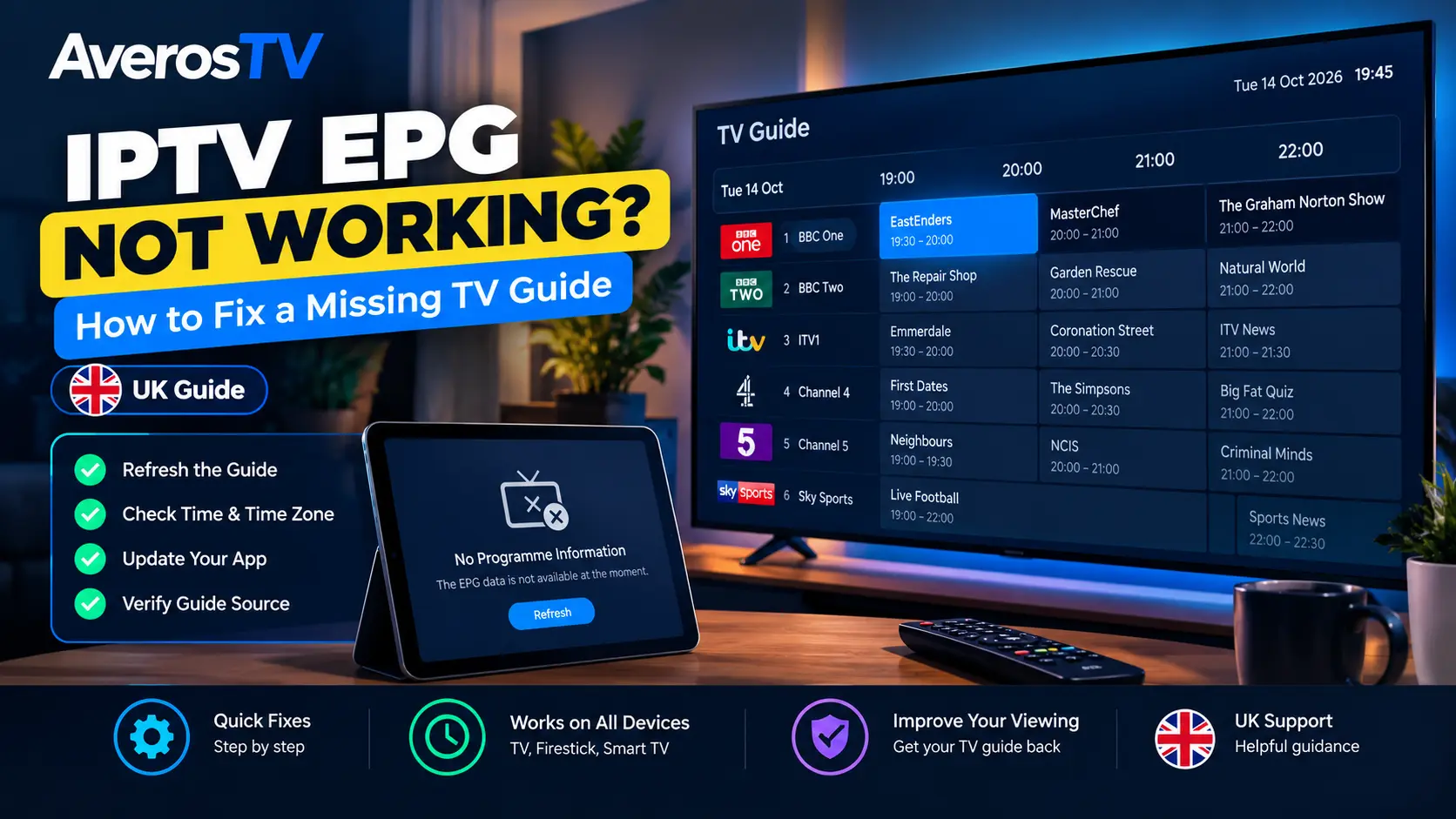
Configure and refresh an EPG
An electronic programme guide displays programme names and schedules. If it is missing, check the app’s EPG settings, your device clock and the guide source provided by your service. Refresh guide data using the app’s normal controls.
Related reading
Check connectivity and concurrent streams
A correct login may still produce playback issues if the network is unstable or the subscription’s simultaneous-stream allowance is exceeded. Test one device at a time and compare the results.
Related reading
IPTV configuration guide: before you enter details
This IPTV configuration guide starts with a simple distinction: installing a player is not the same as activating a content subscription. Your provider should tell you which application and login method it supports. Check those instructions before entering a playlist URL, account name or server address.
For M3U-based setups, the playlist contains entries that a compatible player can interpret. The format does not prove that the content is authorised or available in your region. For account-based setups, a player may request a username, password and a service endpoint. These details are sensitive and should be handled like other account credentials.
How to diagnose configuration errors
If a login fails, check for spaces added during copying, incorrect capital letters and outdated account information. Confirm that the device date and time are correct. If the app cannot connect, test your broadband connection and check whether the app publisher has announced an outage or update.
If video plays but programme information is missing, focus on EPG settings. Some players need a separate guide refresh, while others receive data automatically. If one device works and another does not, compare app versions and supported formats. Do not publish credentials or share account screenshots when asking for assistance.
Independent resources
For further background, consult UK National Cyber Security Centre guidance. This independent resource is not an endorsement of AverosTV or any IPTV subscription.
Before you order
Check compatibility, content rights, connection allowances, payment terms and support before buying any subscription. Compare AverosTV plans, review the frequently asked questions, or contact support if you need help. Player software and third-party brands mentioned in these guides are independent of AverosTV unless expressly stated otherwise.